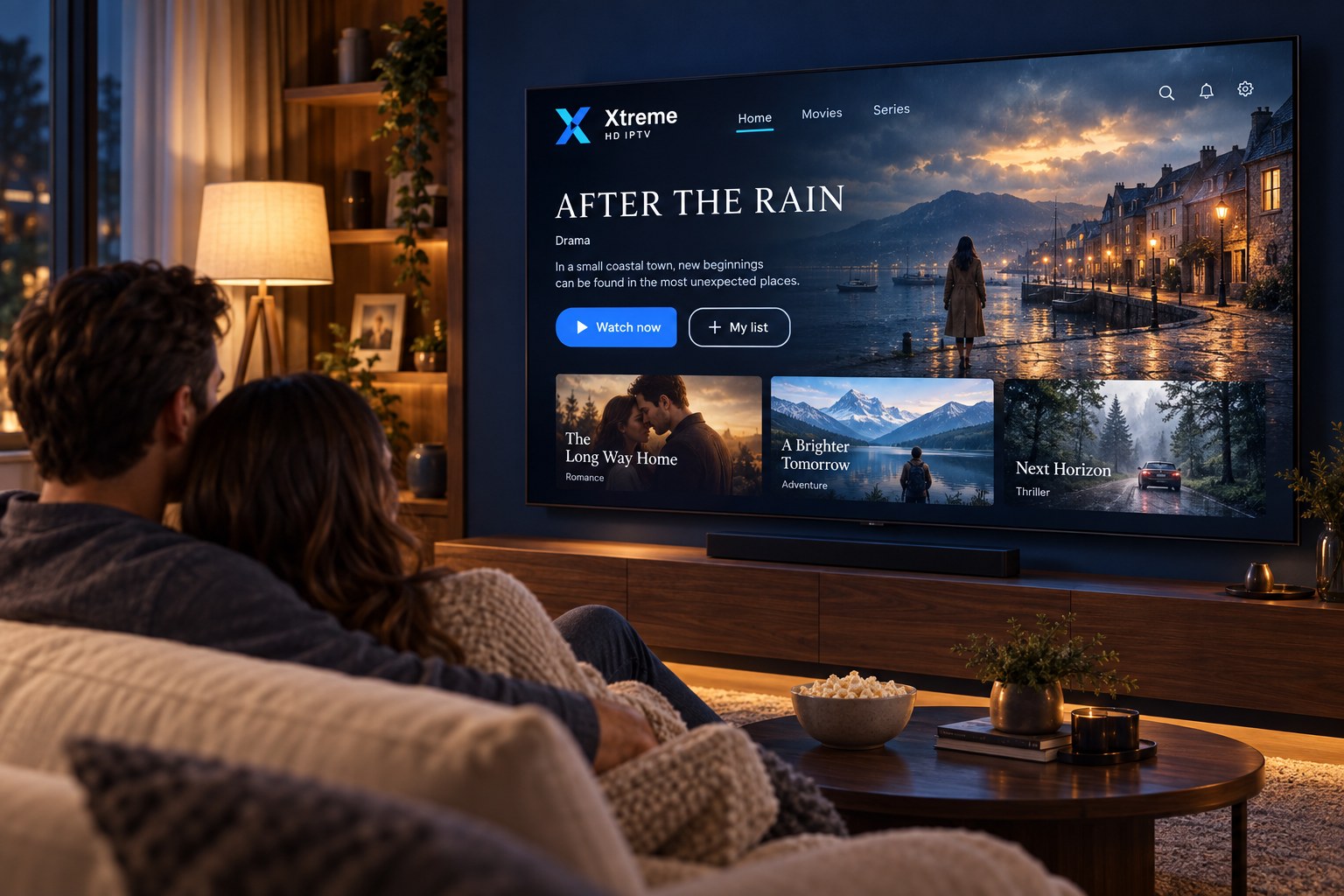
Amazon Fire TV & Firestick
Install a compatible IPTV player from the Amazon Appstore or by sideloading, then sign in with your subscription details.
Setup guideSetup guide
Android TV boxes, Google TV streamers and Android-powered televisions have the widest choice of IPTV player apps, all installed from Google Play. Setup usually takes a few minutes.
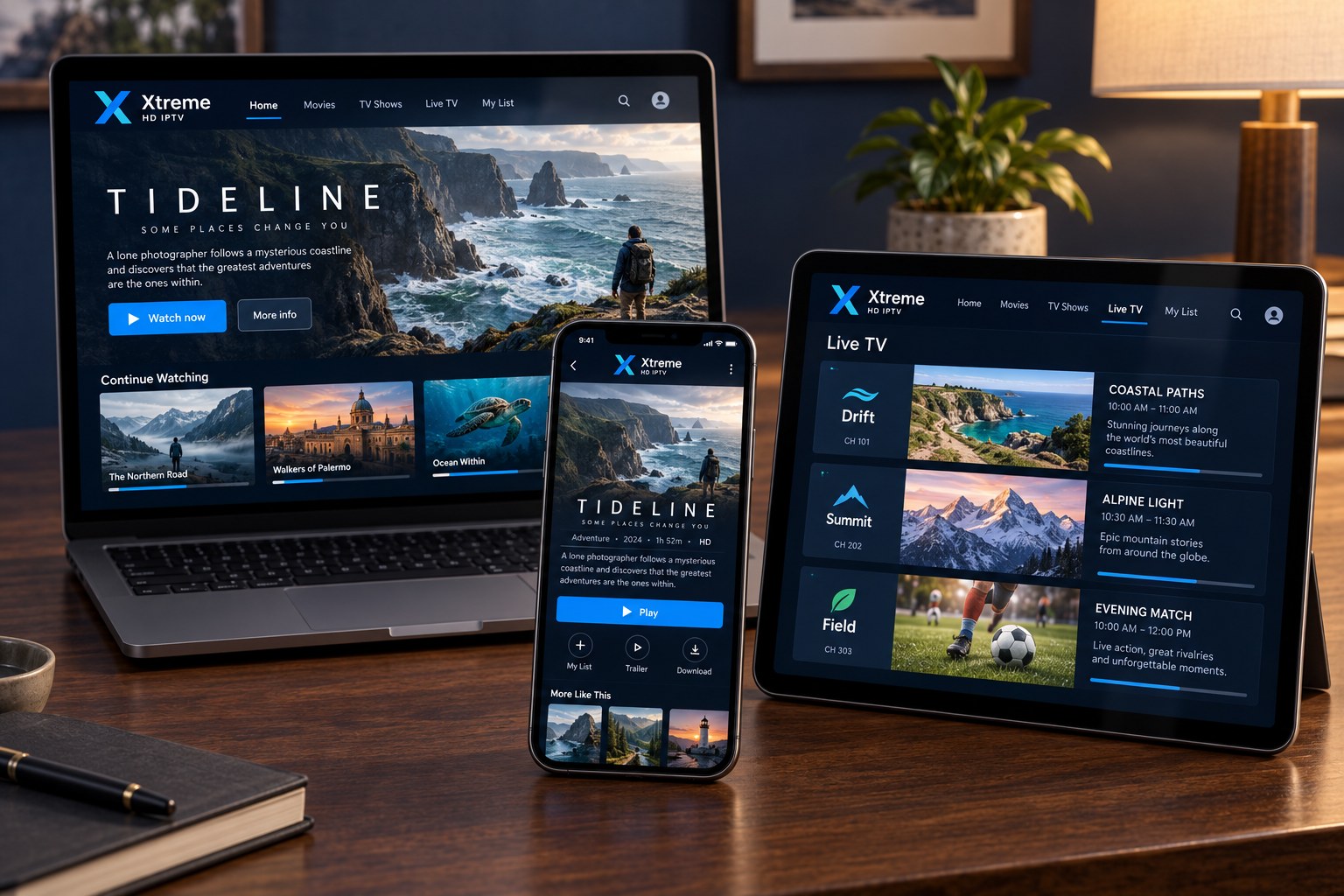
Install a compatible IPTV player from the Amazon Appstore or by sideloading, then sign in with your subscription details.
Setup guideSamsung, LG and other smart TVs use an IPTV player app from the TV’s own app store. Availability varies by model and region.
Setup guideApple TV (tvOS) uses an IPTV player from the App Store. Some players are free; others charge a small fee to the app developer.
Setup guideAny recent Android phone or tablet can run a player app from Google Play. Ideal for watching away from the main TV.
Installation stepsiPhone and iPad use an IPTV player from the App Store. Playback works over Wi-Fi or mobile data.
Installation stepsDesktop and laptop computers can use a desktop IPTV player or a media player that supports playlists.
Installation stepsQuestions & answers
Open the app store on your device (Amazon Appstore, Google Play, the App Store or your TV’s store), search for an IPTV player that supports Xtream Codes or M3U playlists, install it, then enter the details we send you. Our installation guides give exact steps for each device family.
You can install a player app on more than one device and sign in with the same details, but the number of devices that can stream at the same time depends on the subscription. Tell us how many screens you expect to use at once and we will confirm what is possible before you order.
First, restart the player app and your router. Move closer to the router or switch to a wired connection if you can, close other apps or downloads using bandwidth, and try a lower quality stream if the player offers one. If buffering continues, contact us with your device type and the time it happened so we can investigate.
See the plans, then message us with your choice. Setup details follow once your order is confirmed.