
Setup guide

How to set up IPTV on a Samsung, LG or other Smart TV

Smart TVs run their own operating systems (Tizen on Samsung, webOS on LG, and Android TV or Google TV on many other brands). Each has an app store where IPTV player apps can be found, although availability varies by model year and region.
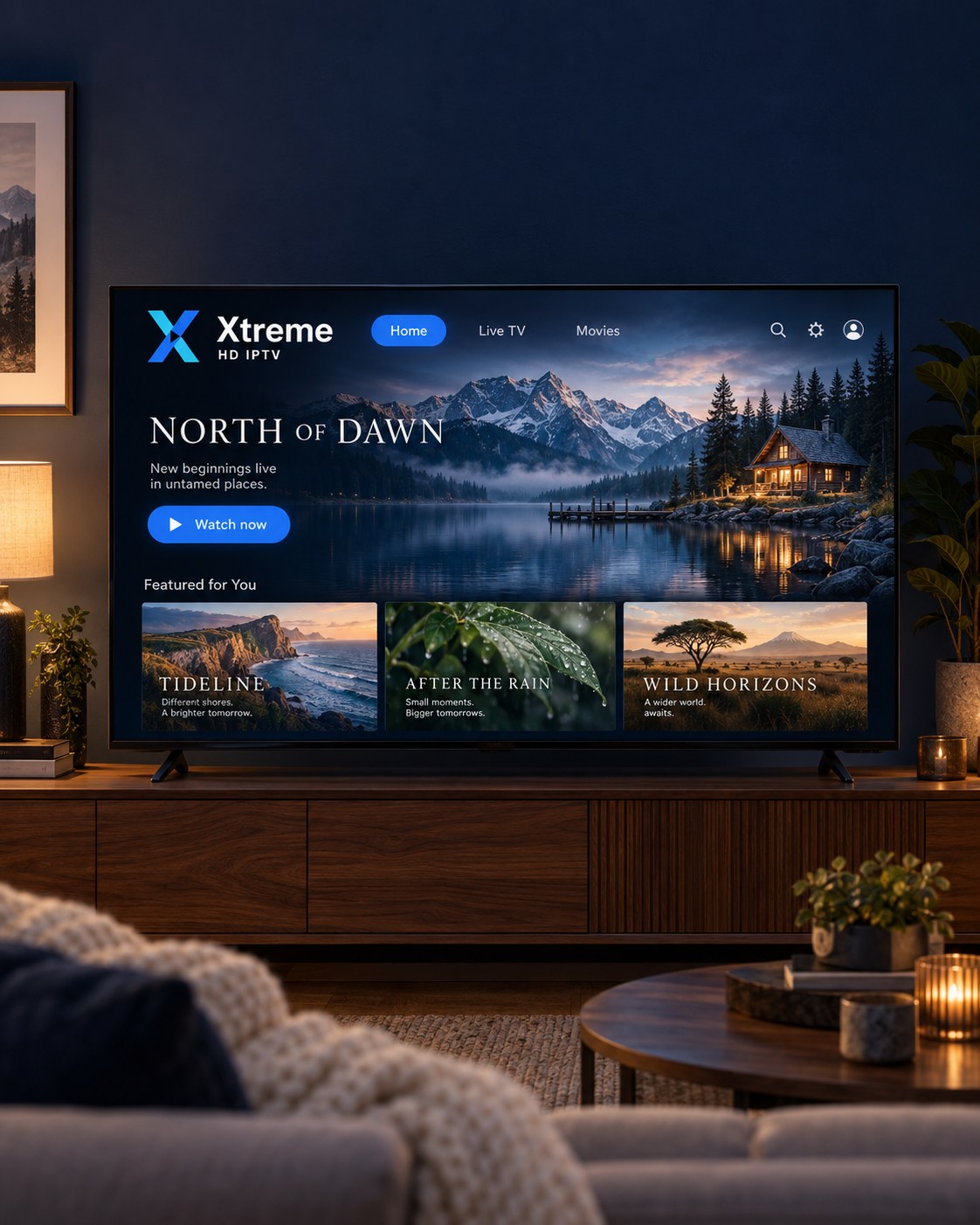
A television on a walnut console displays the Xtreme HD IPTV interface in a cosy living room.

What you need

  • A Smart TV connected to the internet, with its software up to date
  • Your sign-in details from Xtreme HD IPTV
  • Sometimes a second device (phone or computer) to enter a playlist link, depending on the player

Step by step

  1. Open your TV’s app storeOn Samsung, press Home and open Apps. On LG, press Home and open the LG Content Store. On Android TV or Google TV sets, open Google Play. Search for “IPTV player”.
  2. Install a player that supports Xtream Codes or M3URead the app description before installing. Some Smart TV players are free, some are paid, and some are free for a trial period with a one-off activation fee paid to the developer.
  3. Add your subscriptionSome TV players let you type the details with the remote. Others show a device ID on screen and ask you to add your playlist from the developer’s website on a phone or computer; the TV then downloads it automatically.
  4. Enter your sign-in detailsChoose “Xtream Codes” (server address, username, password) or “M3U playlist” (a single link) and enter the details we sent you exactly as written. Both methods connect to the same subscription.
  5. Let the player load the categoriesThe first load can take a minute while the app downloads the channel list and, where included, the programme guide. Subsequent starts are faster.
  6. Start watching and adjust settingsOpen a live category to confirm playback, then explore the player’s settings for favourites, hidden categories, buffer size and subtitles.

Tips

  • If your TV is several years old and no suitable player is available, a Fire TV Stick or Android TV box plugged into an HDMI port is an inexpensive alternative.
  • Turn off “auto motion” or “motion smoothing” picture settings if live sport looks unnatural.
  • Wired Ethernet is available on most Smart TVs and is the most reliable connection for streaming.

Guides for other devices

Amazon Fire TV & Firestick

Install a compatible IPTV player from the Amazon Appstore or by sideloading, then sign in with your subscription details.

Setup guide

Android TV & Google TV

Android TV boxes, Google TV devices and Android-powered televisions install a player app from Google Play.

Setup guide

Apple TV

Apple TV (tvOS) uses an IPTV player from the App Store. Some players are free; others charge a small fee to the app developer.

Setup guide

Android phones & tablets

Any recent Android phone or tablet can run a player app from Google Play. Ideal for watching away from the main TV.

Installation steps

iPhone & iPad

iPhone and iPad use an IPTV player from the App Store. Playback works over Wi-Fi or mobile data.

Installation steps

Windows & Mac computers

Desktop and laptop computers can use a desktop IPTV player or a media player that supports playlists.

Installation steps

Questions & answers

Frequently asked questions

Which devices can I use?

Common options include Amazon Fire TV and Firestick, Samsung and LG Smart TVs, Android TV and Google TV devices, Apple TV, Android phones and tablets, iPhone and iPad, and Windows or Mac computers. Each needs a compatible IPTV player app. See the Compatible Devices page for details and setup links.

How do I install a compatible IPTV player?

Open the app store on your device (Amazon Appstore, Google Play, the App Store or your TV’s store), search for an IPTV player that supports Xtream Codes or M3U playlists, install it, then enter the details we send you. Our installation guides give exact steps for each device family.

What internet connection do I need?

A stable broadband connection is the most important factor. As a general guide, HD streams typically need a reliable connection of around 10 Mbps or more, and 4K content needs considerably more. A wired Ethernet connection or a strong Wi-Fi signal close to the router gives the most consistent results.

Ready to subscribe?

See the plans, then message us with your choice. Setup details follow once your order is confirmed.
Chat on WhatsApp (opens in a new tab)