

IPTV Keeps Buffering? 9 Fixes That Actually Work in 2026

If your IPTV keeps buffering, the cause is almost never the one people assume. It’s rarely your subscription, and it’s rarely your broadband speed. In the large majority of cases it’s your Wi-Fi, your router’s memory, or a device quietly running out of breathing room.
The nine fixes below are ordered by how often they work relative to how little effort they take. Work through them in sequence. Most people stop somewhere around fix three or four.
First, Understand What Buffering Actually Is
Thirty seconds of theory that makes everything below make sense.
Your player app doesn’t stream video in a smooth continuous flow. It downloads a few seconds ahead into a buffer, plays from that buffer, and refills it constantly in the background. While the refill keeps pace, playback is seamless and you never think about it.
Buffering is what you see when that buffer runs dry. The player has nothing left to display and must pause while it catches up.
This explains the single most confusing symptom in the category: when your IPTV keeps buffering despite a speed test showing excellent results. Your test measured a peak. Your player experiences the dips. A connection averaging 100 Mbps that drops to near-nothing for three seconds every minute will stutter constantly, while a rock-steady 20 Mbps plays perfectly.
Stability, not speed. Keep that in mind and the fixes below will make sense.
Fix 1: Restart the Router Properly
Not a quick off-and-on. Unplug it from the wall, wait a full 30 seconds, then plug it back in and let it fully reconnect.
The pause matters. It clears the router’s memory, drops stale connections, and forces a fresh negotiation with your provider. Routers accumulate problems over weeks of uptime — memory fills, connection tables bloat, and throughput degrades quietly.
This is first on the list because it’s free, takes two minutes, and resolves a surprising share of cases where IPTV keeps buffering. Do it monthly as maintenance, not only when something breaks.
Fix 2: Restart the Player App and Your Device
Same principle, one layer up. Close the app completely — not minimised, fully closed — and reopen it. If that doesn’t help, restart the streaming device itself.
Player apps hold cached data, expired session tokens and half-finished downloads. Streaming sticks in particular run on limited memory, and after days of standby they’re often close to exhausted before you press play.
On a Fire TV device, a full restart from the settings menu works better than pulling the power.
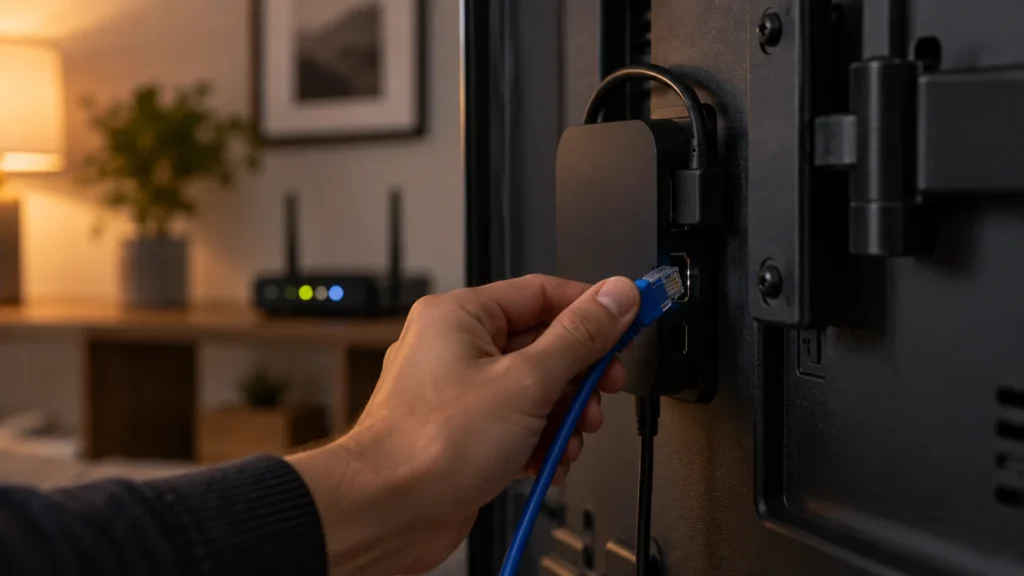
Fix 3: Switch to a Wired Connection
This is the one that actually ends the problem for most people, and it’s why it appears this high despite costing a little money.
An ethernet cable eliminates Wi-Fi interference, distance limitations and channel congestion in a single step. Ethernet adapters for streaming sticks cost around $15 and are, without exaggeration, the best value purchase in home streaming.
If running a cable across the room isn’t practical, powerline adapters — which carry the network over your existing electrical wiring — are a reasonable alternative, though results vary depending on how your house is wired.
If your IPTV keeps buffering only on the television but your phone streams fine in the same room, this fix is almost certainly your answer. Our Firestick guide covers adapter setup.
Fix 4: Move to the 5 GHz Wi-Fi Band
If wiring genuinely isn’t possible, this is the next best step.
Most modern routers broadcast two networks: 2.4 GHz and 5 GHz. The 2.4 GHz band reaches further but is slower and heavily congested — it shares space with neighbouring networks, cordless phones, microwaves and Bluetooth devices. The 5 GHz band is considerably faster and far cleaner, but weakens more quickly over distance and through walls.
For a television in the same room as the router, or one room away, switch to 5 GHz. For a television at the opposite end of the house, 2.4 GHz may genuinely be the more stable choice. Test both and compare during evening hours.
Fix 5: Move the Router
Routers belong out in the open, roughly central to your home, and raised off the floor.
Tucked inside a cabinet, hidden behind a television, sitting on the floor in a corner, or positioned next to a large metal appliance — each of these cuts effective range substantially. A router behind a wall-mounted television is broadcasting through the television itself.
Costs nothing. Occasionally fixes everything.
Fix 6: Reduce Competing Traffic
Everything sharing your connection competes with your viewing:
- Cloud backups syncing automatically
- Game consoles downloading updates in standby
- Another television streaming in a different room
- Video calls, which are unusually sensitive to congestion
- Phones and tablets updating apps in the background
Schedule large downloads for overnight. Pause console updates during viewing hours. If your IPTV keeps buffering at consistent times — a weekday evening, say — competing household traffic is a strong suspect.
Worth checking too: how many streams your plan allows simultaneously. If your household runs more screens than your subscription permits, the symptoms can resemble buffering. Our FAQ page explains connection limits.
Fix 7: Clear the App Cache
Player apps accumulate cached data over time, and on a device with limited storage this eventually degrades performance.
On Android and Fire TV devices, find the app in your device settings and clear its cache — not its data, which would delete your login. On other platforms, uninstalling and reinstalling achieves the same result, though you’ll need to re-enter credentials.
While you’re there, check available storage. A device with almost no free space performs poorly at everything, streaming included.
Fix 8: Lower the Stream Quality
A practical compromise rather than a true fix, but it works immediately.
Many players let you select a lower resolution or an alternative stream for the same channel. Dropping from 4K to Full HD, or Full HD to HD, reduces bandwidth demand substantially — and on a 55-inch television at normal viewing distance, the visual difference is far smaller than the difference between a smooth picture and a stuttering one.
If your IPTV keeps buffering only on 4K content while HD plays perfectly, you’ve found your ceiling. Either accept HD or address the underlying connection.
Fix 9: Check Whether Your Device Is the Bottleneck
Sometimes the problem isn’t the network at all.
Streaming sticks more than about four or five years old struggle with modern high-bitrate content. The processor simply can’t decode fast enough, and the symptom looks identical to a network problem — stuttering, freezing, audio drifting out of sync.
How to tell: try the same channel on a different device on the same network. A phone will do. If the phone plays it smoothly while the television stutters, your network is fine and your streaming device is the limitation.
A modern streaming stick costs $30 to $50 and will do more for your picture than any broadband upgrade. Our compatible devices page covers what handles 4K comfortably.
How to Diagnose It Properly
If you’ve worked through all nine and your IPTV keeps buffering, diagnose systematically rather than guessing.
Test at the right time. Run a speed test at Speedtest during the exact hours you experience problems — evening, not morning. Run it three or four times to see the pattern rather than a single snapshot.
Test from the right place. Test on the device you watch on, standing where it sits. Wi-Fi strength varies dramatically across a home.
Compare wired against wireless. Test on Wi-Fi, then with an ethernet cable. A large gap confirms Wi-Fi is the problem.
Check the baseline. HD needs roughly 10 Mbps, 4K around 25 Mbps — per stream. The FCC broadband speed guide lists requirements by activity, and Ofcom publishes research on why delivered speeds so often fall short of advertised ones.
Note when it happens. Only during specific hours suggests congestion. Only on specific channels suggests source-side issues. Only on one device points at that device. Constantly across everything points at your connection.
That last pattern is the one worth reporting. Tell us the device, the channel, and the time — our support team can check the server side far faster with those three details than without them.
Our dedicated buffering troubleshooting checklist covers the remaining edge cases in a shorter format if you want a quick reference.
What Nobody Can Fix
Being honest about limits saves frustration.
No service can guarantee uninterrupted playback on every network under every condition. Your connection passes through equipment nobody controls — local infrastructure, regional congestion, your building’s wiring. A provider promising flawless playback regardless of conditions is describing something that doesn’t exist, and that promise is a reason for suspicion rather than confidence.
Equally, no amount of bandwidth improves content that wasn’t broadcast in high resolution to begin with. If a channel’s source is 720p, a 500 Mbps connection displays a clean 720p picture. That’s correct behaviour, not a fault.
Frequently Asked Questions
Why does my IPTV keep buffering when my internet is fast?
Because speed tests measure peaks while your player experiences dips. Instability — usually Wi-Fi — causes buffering even on fast connections. Try a wired connection to confirm.
Why does buffering happen only in the evening?
Peak-hour congestion, either in your neighbourhood or within your own household. Test at 10am and 9pm and compare the results.
Will a VPN stop buffering?
Usually the opposite. A VPN routes traffic through an extra server, adding overhead and typically reducing throughput. If you use one and experience buffering, switch it off to test.
Does restarting the router really help?
Yes, more than people expect. Routers degrade over weeks of continuous uptime. A full 30-second power-off clears accumulated problems.
Is buffering the provider’s fault?
Sometimes, but far less often than assumed. Work through the nine fixes first. If buffering persists on a wired connection with adequate speed across multiple devices, then contact support with those details.
Should I upgrade my broadband?
Only if testing shows you’re genuinely below requirement. If your speed is already adequate, upgrading raises the peak while leaving instability untouched — you’ll pay more monthly and see no improvement.
The Bottom Line
When IPTV keeps buffering, the cause is usually Wi-Fi rather than bandwidth, and the fix is usually a $15 cable rather than a more expensive subscription.
Work the list in order: restart the router, restart the app, go wired, switch to 5 GHz, move the router. Five steps resolve the overwhelming majority of cases.
If you’ve done all of it and problems persist, message our team with your device, the channel, and the time it happened. Those three details let us check the server side properly instead of guessing — and if the issue is on our end, we’d rather know than have you assume it’s your Wi-Fi.