
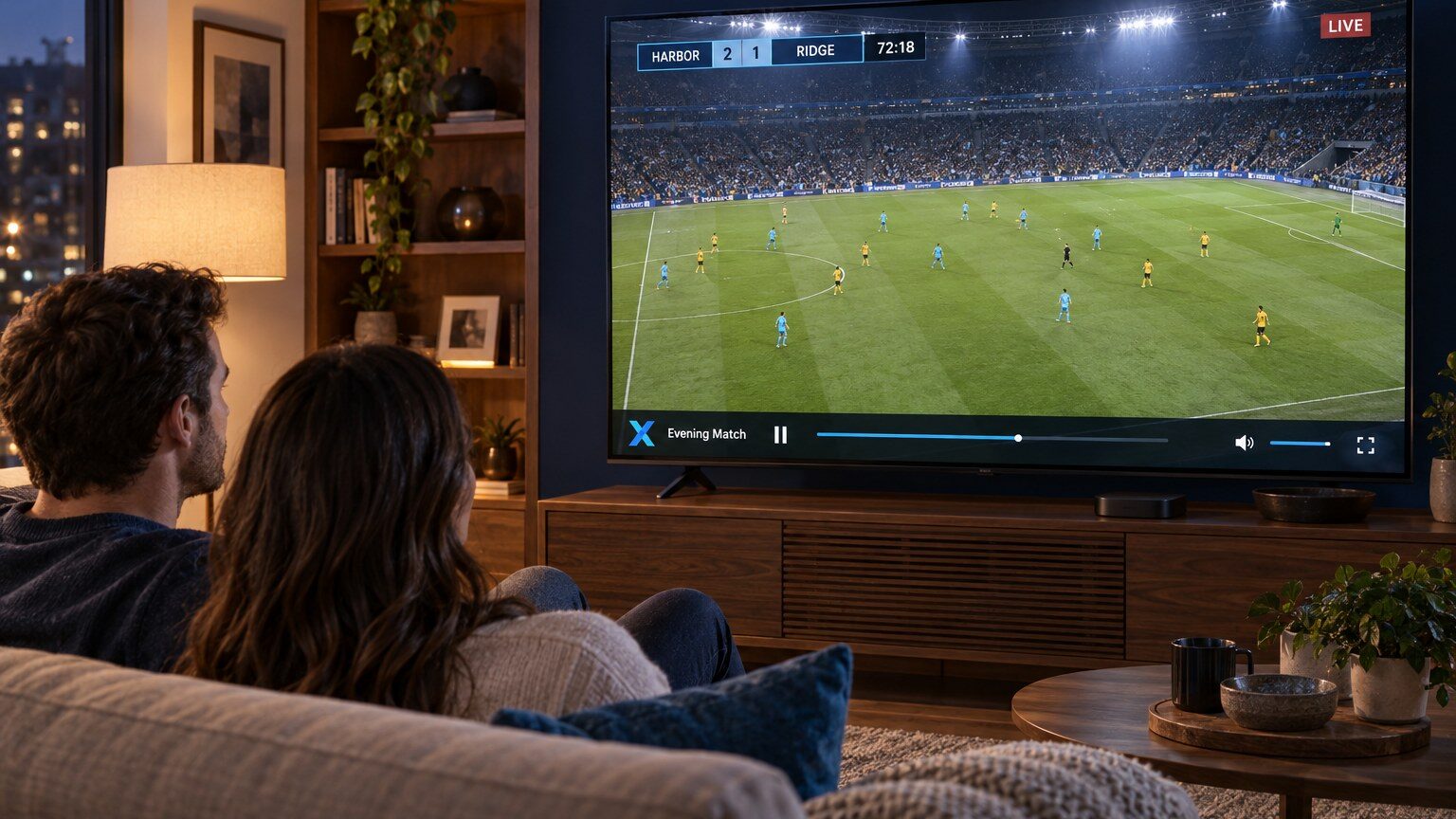
Buffering is the pause that happens when a player runs out of downloaded video before it can show the next frame. A little buffering at the start of a stream is normal; repeated pauses during playback are not. This guide works through the causes in order, from the quickest checks to the ones that need a change in your setup.
Start with the five-minute checks
- Restart the player app. Close it fully rather than returning to the home screen, then reopen it.
- Restart the streaming device and the router. Unplug the router for thirty seconds. This clears a surprising number of problems.
- Try another channel or category. If only one stream buffers, the cause is that stream rather than your network.
- Pause other traffic. Large downloads, cloud backups and video calls on other devices all compete for bandwidth.
- Check for app updates. Player updates often fix playback bugs.
Test your connection where the device sits
Run a speed test on the streaming device itself, or on a phone standing next to it. A fast result at the router does not help if the signal is weak by the time it reaches the living room. Watch the result for stability as well as speed: a connection that swings between 5 and 40 Mbps will buffer even though the average looks fine.
Wi-Fi is the most common cause
Wireless signal weakens with distance and walls, and it shares airtime with every other Wi-Fi network nearby. If your device is far from the router, try one of these in order of effectiveness:
- Connect the device with an Ethernet cable. Many TV boxes and some sticks accept a USB Ethernet adapter.
- Move the router or the device so there are fewer walls between them.
- Use the 5 GHz band if your router and device support it; it is faster and less crowded, though its range is shorter.
- Add a mesh node or access point closer to the TV rather than a cheap repeater.
Device limitations
Older streaming sticks and budget Smart TVs have limited processing power and memory. They may buffer on high-bitrate streams even with an excellent connection. Symptoms include buffering that starts a few minutes into a stream, or the whole interface becoming sluggish. Clearing the player’s cache helps temporarily; a newer device solves it properly.
Player settings worth changing
- Buffer size: increasing it lets the player store more video before playing, smoothing short dips in speed.
- Decoder: switching between hardware and software decoding can fix stuttering on some devices.
- Stream format: if the player lets you choose between HLS and MPEG-TS, try the other one.
- Quality: where a lower-resolution version of a stream exists, choose it on a slow connection.
When to contact support
If buffering affects every channel after the steps above, or if it started suddenly on a setup that worked before, contact our support team. Include your device type, the player you use, the channel or category affected, the time it happened and whether you are on Wi-Fi or cable. Those details let us check the right things straight away.
For a general overview of what affects quality, see the streaming requirements on our FAQ page.
5 comments