
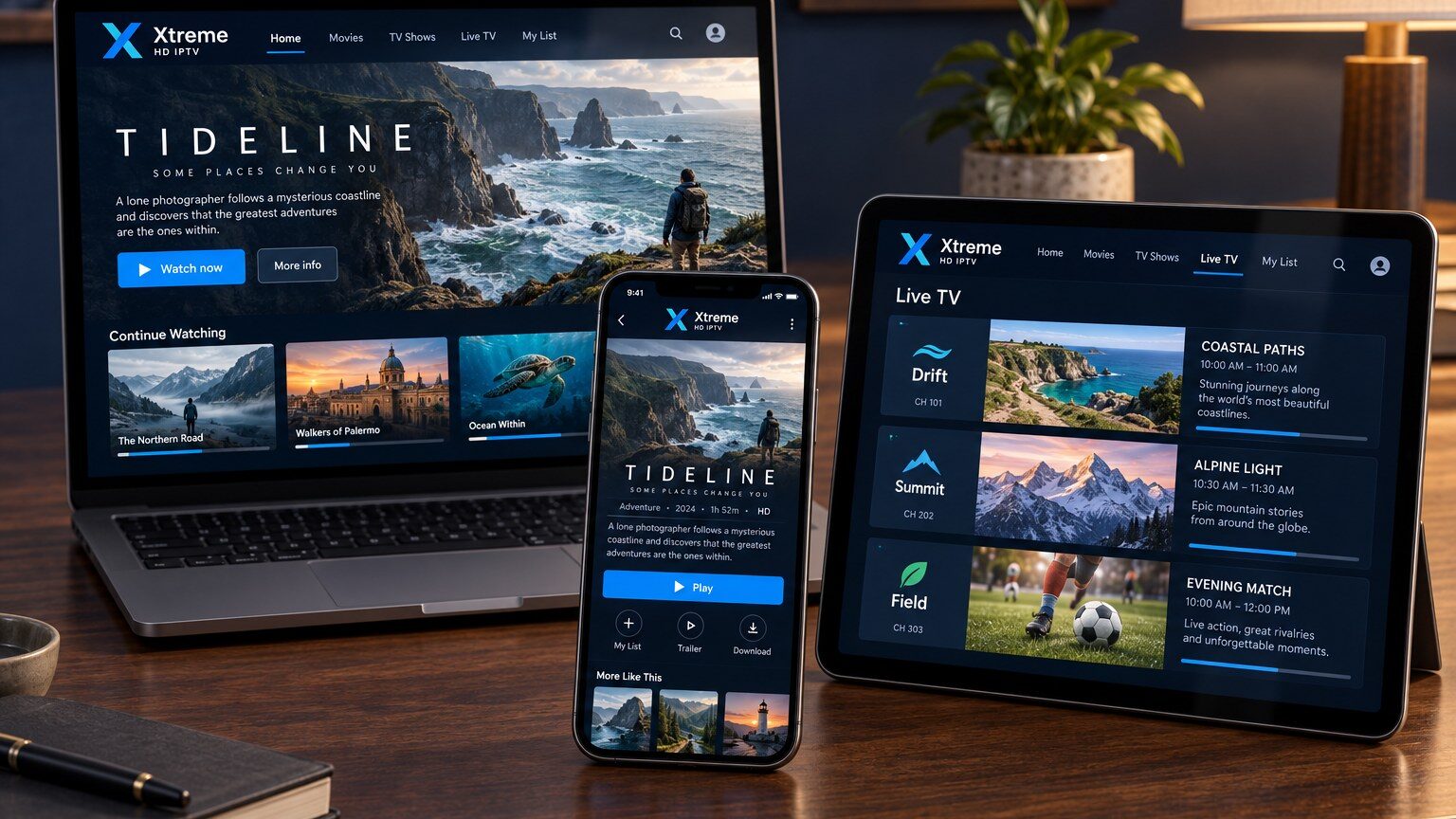
If you have looked at IPTV player apps, you have almost certainly seen the term M3U. It sounds technical, but an M3U playlist is simply a text file that tells a player where to find streams and what to call them. This guide explains what is inside one, how players use it and what to do when a playlist does not load.
What an M3U file actually contains
M3U began as a playlist format for music players. Each entry has two parts: a line of information beginning with #EXTINF that holds the display name and optional metadata, followed by a line with the address of the stream. IPTV players read the file from top to bottom and build a channel list from it.
Extended attributes in the #EXTINF line can include a channel logo (tvg-logo), a group name (group-title) used to build categories, and an identifier (tvg-id) that links the channel to an electronic programme guide. Players that support these attributes show a much tidier interface than those that only read the name.
M3U link versus M3U file
Most subscriptions provide an M3U link rather than a file. The link points to a playlist generated on the server for your account, so when the line-up changes the player simply reloads the link. A downloaded file is a snapshot: it works until something changes, then it needs replacing. If your player offers both options, choose the link.
How players use the playlist
- You paste the link (or choose the file) in the player’s “Add playlist” screen.
- The player downloads the playlist and reads every entry.
- Entries are grouped by
group-titleinto categories such as News, Sports or Movies. - If an EPG source is configured, the player matches
tvg-idvalues to programme data. - Selecting a channel tells the player to open the stream address from the playlist.
Common problems and fixes
The playlist will not load
Check the link for typing mistakes: a single missing character breaks it. Confirm the device has internet access by opening another app. If you copied the link from a message, make sure the app did not add a space at the end.
Channels load but nothing plays
This usually means the playlist is fine but the stream itself is not reachable from your network, or the subscription has expired. Try a different channel, restart the router, then contact support with the time and channel name so it can be checked.
Categories are missing or messy
Some players ignore group-title or group everything under “Uncategorised”. Switching to a player with better playlist support usually solves this without any change to the subscription.
Keep your playlist private
Your M3U link contains your account details. Treat it like a password: do not post it in public forums or share it in group chats. If you think it has been exposed, contact support so it can be reset.
Ready to set up a device? Our installation guide shows where to enter your playlist on each device family, and the support page explains how to reach us if something does not work.