
IPTV Internet Speed: What You Need for HD and 4K in 2026
The IPTV internet speed you need is lower than most people assume. Standard definition works on around 5 Mbps, HD needs roughly 10 Mbps, and 4K wants 25 Mbps or more. If you already stream anything at all, your connection is probably fast enough.
What trips people up is that speed is the wrong thing to focus on. A steady 20 Mbps delivers a better picture than an erratic 200 Mbps, every single time. This guide covers the numbers you actually need, the reason stability matters more than any of them, and how to work out whether your connection is the problem.
The Numbers You Need
Here are realistic minimums per stream, with the figure you should actually aim for:
| Quality | Bare minimum | Recommended |
|---|---|---|
| SD (480p) | 3 Mbps | 5 Mbps |
| HD (720p) | 5 Mbps | 10 Mbps |
| Full HD (1080p) | 8 Mbps | 15 Mbps |
| 4K (2160p) | 25 Mbps | 35 Mbps |
The “recommended” column isn’t padding. It’s headroom — the buffer that absorbs the brief dips every home connection experiences without turning them into a frozen picture.
Multiply by Simultaneous Streams
These figures are per stream. A household watching Full HD on the living room television while someone watches HD on a tablet needs roughly 25 Mbps for those two alone — before anyone opens a browser or a game starts updating in the background.
Add up what your home realistically does at once. If two televisions run in the evening, double the number. Our FAQ page covers how simultaneous connections work on a subscription.
Why Stability Beats Raw Speed
This is the part that actually determines whether your viewing is good, and almost nobody explains it properly.
Video streaming doesn’t consume a smooth, even flow of data. The player downloads a few seconds ahead into a buffer, plays from that buffer, and refills it continuously. As long as the refill keeps up, playback is perfect. The moment it doesn’t, the buffer empties and the picture freezes.
A connection averaging 100 Mbps that collapses to 2 Mbps for four seconds every couple of minutes will stutter constantly. A connection holding a flat 20 Mbps will play flawlessly. The average looks better on the first one. The viewing experience is far worse.
This is why your IPTV internet speed test result can look excellent while your picture keeps breaking up. You measured the peak. Your player experiences the troughs.
What Causes Instability
- Wi-Fi interference from neighbouring networks, walls, microwaves and distance from the router
- Peak-hour congestion in your area, typically weekday evenings between 7pm and 11pm
- Other household activity — cloud backups, game downloads, video calls, another television
- Ageing router hardware that can’t handle many connected devices at once
- Provider throttling during busy periods on some connection types
Notice that only one of those is about the speed you pay for. The rest are about what happens to that speed inside your home.
How to Test Your IPTV Internet Speed Properly

Most people test wrong, get a reassuring number, and stay confused. Do it this way instead:
1. Test at the right time. Run it during peak evening hours — the same time you actually watch. A Tuesday-morning result tells you nothing about a Saturday-night problem.
2. Test from the device you watch on, not your phone in a different room. Wi-Fi strength varies dramatically across a home. The number that matters is the one at your television.
3. Test more than once. Run it three or four times across an evening. A single result is a snapshot; you need the pattern. Use Speedtest or a similar tool.
4. Note the upload and ping too. High ping and jitter indicate an unstable line even when download speed looks healthy.
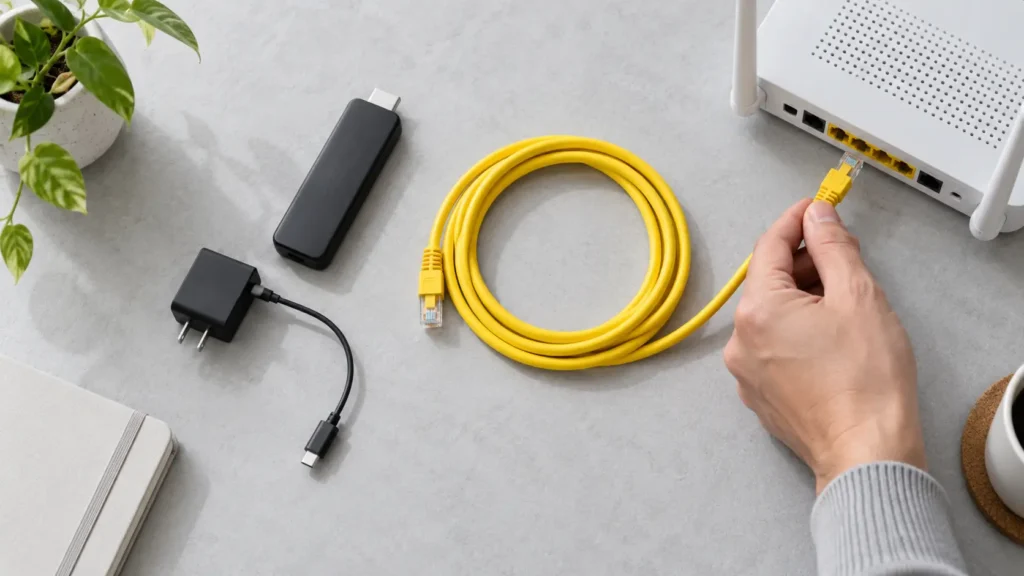
5. Compare wired against wireless. Test on Wi-Fi, then plug the same device into the router with an ethernet cable and test again. A large gap means your problem is Wi-Fi, not your IPTV internet speed.
For baseline reference figures, the FCC broadband speed guide lists requirements by activity, and Ofcom publishes research on the persistent gap between advertised and delivered speeds in real homes.
How to Improve Your Connection for Streaming
If your testing shows a problem, work through these in order. They’re ranked by impact per unit of effort, not by cost.
Use a Wired Connection
This single change resolves more streaming complaints than everything else combined. An ethernet cable eliminates interference, distance and congestion in one step. Ethernet adapters for streaming sticks cost around $15 and are the best value purchase in this entire article.
If running a cable is impractical, powerline adapters that carry the network over your electrical wiring are a reasonable second choice.
Switch to the 5 GHz Band
Most modern routers broadcast two networks: 2.4 GHz and 5 GHz. The 2.4 GHz band travels further but is slower and heavily congested. The 5 GHz band is considerably faster and cleaner over short distances.
For a television in the same room as the router, or one room away, 5 GHz is clearly better. For a television at the far end of the house, 2.4 GHz may still win on reliability.
Move the Router
Routers belong in the open, roughly central, and elevated. Inside a cabinet, behind a television, or on the floor in a corner cuts effective range substantially. Moving it costs nothing and sometimes fixes everything.
Restart the Router Properly
Not a quick power cycle — unplug it for a full 30 seconds. This clears the memory and forces a fresh connection. Do it monthly. It’s unglamorous and it genuinely works.
Reduce Competing Traffic
Schedule large downloads and cloud backups for overnight. Pause game updates during viewing hours. If several devices sync automatically, stagger them.
Check Your Device, Not Just the Connection
An older streaming stick can struggle with high-bitrate content even on a strong connection. If everything else in the house streams fine and only one device stutters, the device is the bottleneck — not your IPTV internet speed. Our compatible devices page covers what handles 4K comfortably.
If problems persist after all of this, our buffering troubleshooting guide works through the remaining causes systematically.
What Your Speed Cannot Fix
Being straight about this saves frustration.
A fast connection cannot improve a stream that was never broadcast in high resolution. If source content is delivered at 720p, no amount of bandwidth makes it 4K. You’ll see a clean 720p picture — which is the correct outcome, not a fault.
Nor can speed compensate for an ageing device, an outdated player app, or a television that isn’t 4K-capable in the first place. Picture quality is a chain: source, connection, device, app, screen. The weakest link sets the result, and bandwidth is only one link.
Any service promising uninterrupted playback on every network regardless of conditions is describing something that doesn’t exist. Ours doesn’t claim it, and you should be sceptical of any that does.
Frequently Asked Questions
What IPTV internet speed do I need for 4K?
Around 25 Mbps as a genuine minimum, 35 Mbps for comfortable headroom. Per stream — so double it if two televisions run 4K simultaneously.
Is 10 Mbps enough for IPTV?
For a single HD stream on a stable connection, yes. For Full HD, 4K, or multiple simultaneous streams, no.
Why does my IPTV buffer when my speed test looks fine?
Almost always instability rather than insufficient speed. Your test captured a peak; your player experiences the dips. Test repeatedly during peak hours and compare wired against Wi-Fi.
Does a VPN reduce my IPTV internet speed?
Usually, yes — routing through an additional server adds overhead and often reduces throughput noticeably. If you use one and experience buffering, test with it switched off to isolate the cause.
Is fibre necessary for IPTV?
No. Fibre helps because it tends to be more stable, not because of raw speed. A consistent 25 Mbps on any connection type works well.
Will upgrading my broadband package fix buffering?
Only if your current speed is genuinely below what you need. If you already have adequate bandwidth, upgrading raises the peak while leaving the instability untouched — you’ll pay more and see no improvement. Test properly before spending.
The Bottom Line
The IPTV internet speed requirements are modest: 10 Mbps for HD, 25 Mbps or more for 4K, multiplied by however many streams run at once. Most homes already clear this comfortably.
If you’re having trouble despite adequate bandwidth, the cause is almost certainly stability rather than speed — and a $15 ethernet cable will do more for your picture than a broadband upgrade costing that much every month.
New to all this? Start with IPTV for beginners or our installation guide. If you’d like help working out whether your setup is suitable before subscribing, message our team — we’d rather tell you honestly beforehand than take money for something that won’t work well, and our subscription plans will still be there once you’re confident.